Activation Help
On this page you will find the Activation Wizard needed to activate your Pro features after becoming a Patreon supporter.
You will also find the step-by-step guide how to use the Activation Wizard, and solutions to the most common problems our users run into.
Download Activation Wizard

Roadside Studio Activation Wizard
To activate Pro features in Mods Studio 2 or the Stream Deck plugin, download and run the Activation Wizard.
After downloading, extract the ZIP file to a folder on your computer and run ActivationWizard.exe to begin the activation process.
Follow the step-by-step guide on this page to complete activation.
Activation guide
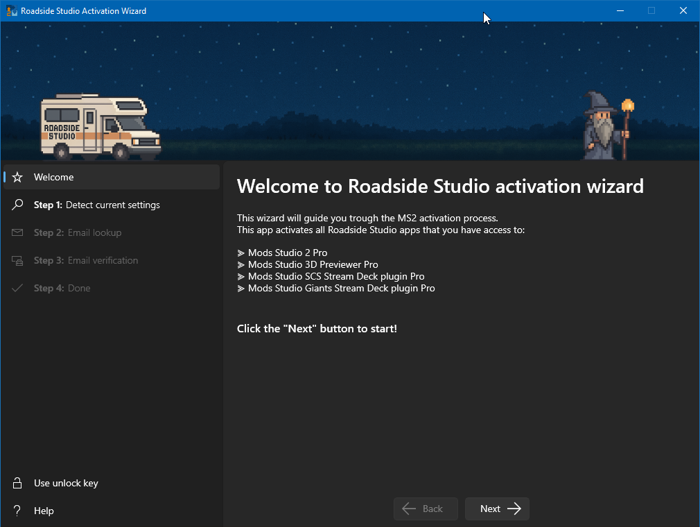
This is the initial page of the wizard. Make sure your activation wizard looks like the one on this image. Older versions of the activation wizard app will not work.
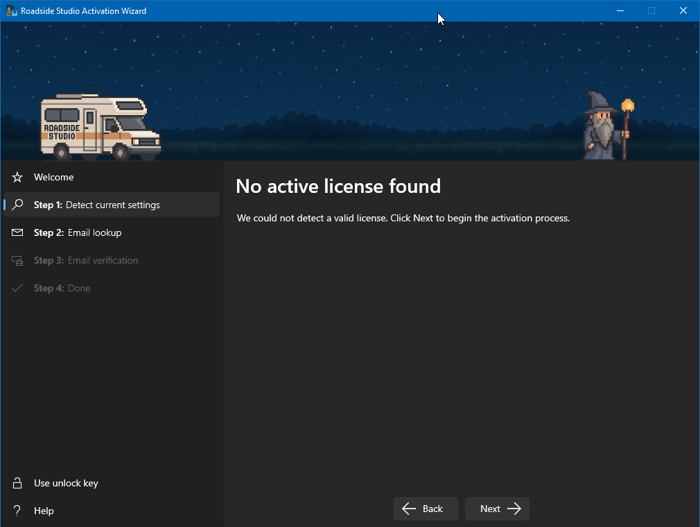
At this point, you should not have an active license. This page shows that. Continue by clicking the Next button.
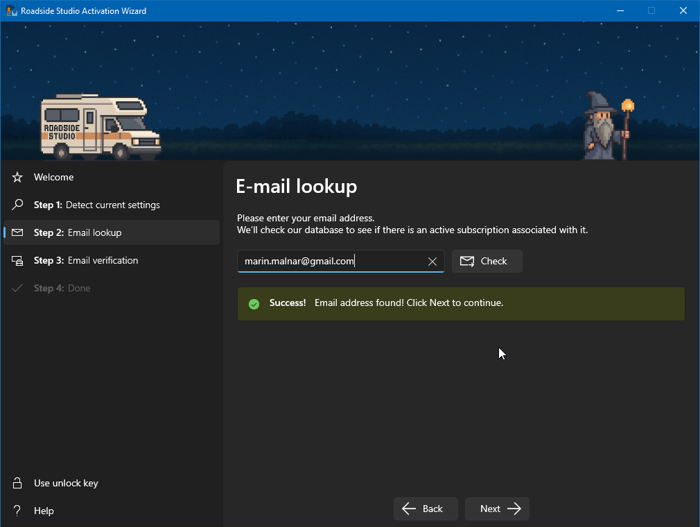
Enter your email address. Use the same address you used on Patreon. First, click the Check button. Once our system verifies your email address, you can proceed by clicking the Next button.
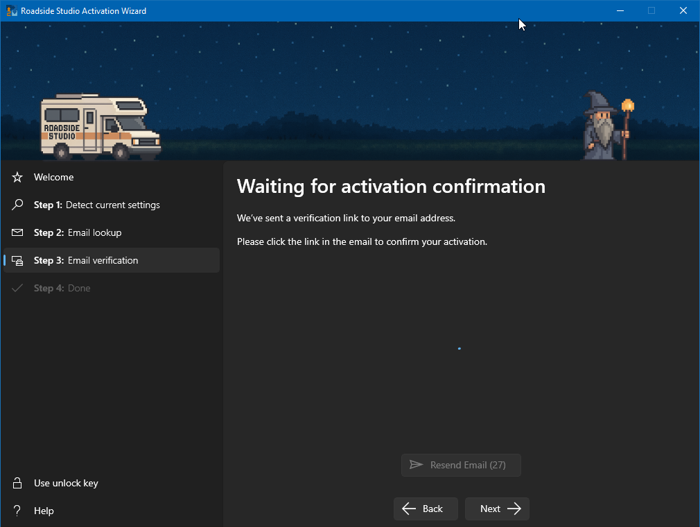
At this point, you have to open your email client and click on the verification link in the email that we have just sent you. Do not close the activation wizard! Once you click the confirmation link, the activation wizard will proceed automatically.
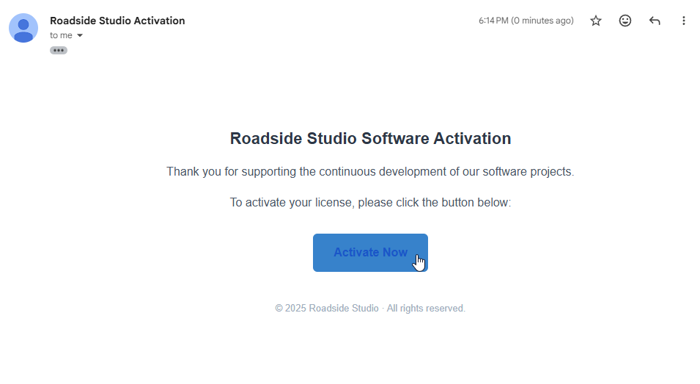
This is how the verification email message looks like. Click the blue Activate Now button, and return to the wizard app. Please check your spam folder if you do not see it in your inbox.
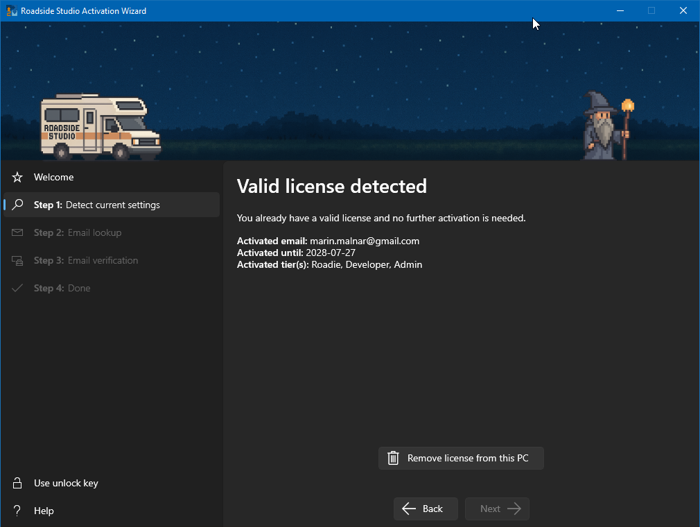
Once you complete the verification, the wizard will indicate success. At any time, you can verify your license by navigating to Step 1 tab in the left menu. You can launch the wizard at any time to get up-to-date information about your license.
Solutions to common issues
- Make sure you extracted the ZIP file
If you downloaded a ZIP file, you must extract it first. Do not run the file directly from inside the ZIP.- Right-click the ZIP file
- Click Extract All…
- Open the new folder that was created
- Run ActivationWizard.exe from that folder
- If Windows shows a warning
Windows may show a security message saying the app is from an unknown publisher. If you see this:- Click More info
- Click Run anyway
- If your antivirus blocks the app
Temporarily disable it or allow the file, then try again. - Install required Microsoft components
The Activation Wizard needs Microsoft components that may not be installed on your PC. After installing both, restart your computer and try again.
Try expanding the wizard window by double-clicking on the title bar. If this does not help, try reducing the Scaling in Windows to a smaller value.
- Make sure you’re using the correct email
Use the exact same email address you use to log into Patreon. Some users have multiple Patreon accounts (for example, one created with Google and another with email/password). Make sure you're using the correct one. - Make sure your Patreon membership is active
Your Pro access only works if your Patreon subscription is currently active. You can check this in your Patreon account under Memberships. - Gifted membership?
If someone gifted you a membership, Patreon sometimes sends us incorrect or incomplete information. If this applies to you, please contact us and include your Patreon username and the email address linked to your Patreon account. We’ll sort it out for you.
- Do not run the app as Administrator
Make sure you are not running Mods Studio 2, Stream Deck plugins or the Activation Wizard as Administrator. Running as Admin can prevent the license from being detected correctly. - Do not install Mods Studio 2 inside OneDrive
If Mods Studio 2 is installed inside OneDrive or another cloud-synced folder, this can cause problems. Please make sure Mods Studio 2 is installed in a normal local folder, preferably on your C drive. If it is installed somewhere else, try reinstalling it to the C drive. - Check the Documents folder permissions
Open this folder:C:\Users\<YourUsername>\Documents\Mods Studio 2
Make sure the entire Mods Studio 2 folder inside Documents is accessible. Nothing (antivirus, security software, Windows protection) is preventing the app from reading or writing files there - The app must be able to both read and write in this folder.