SCS Telemetry App
Transmit game data from American Truck Simulator and Euro Truck Simulator 2 to your Stream Deck!
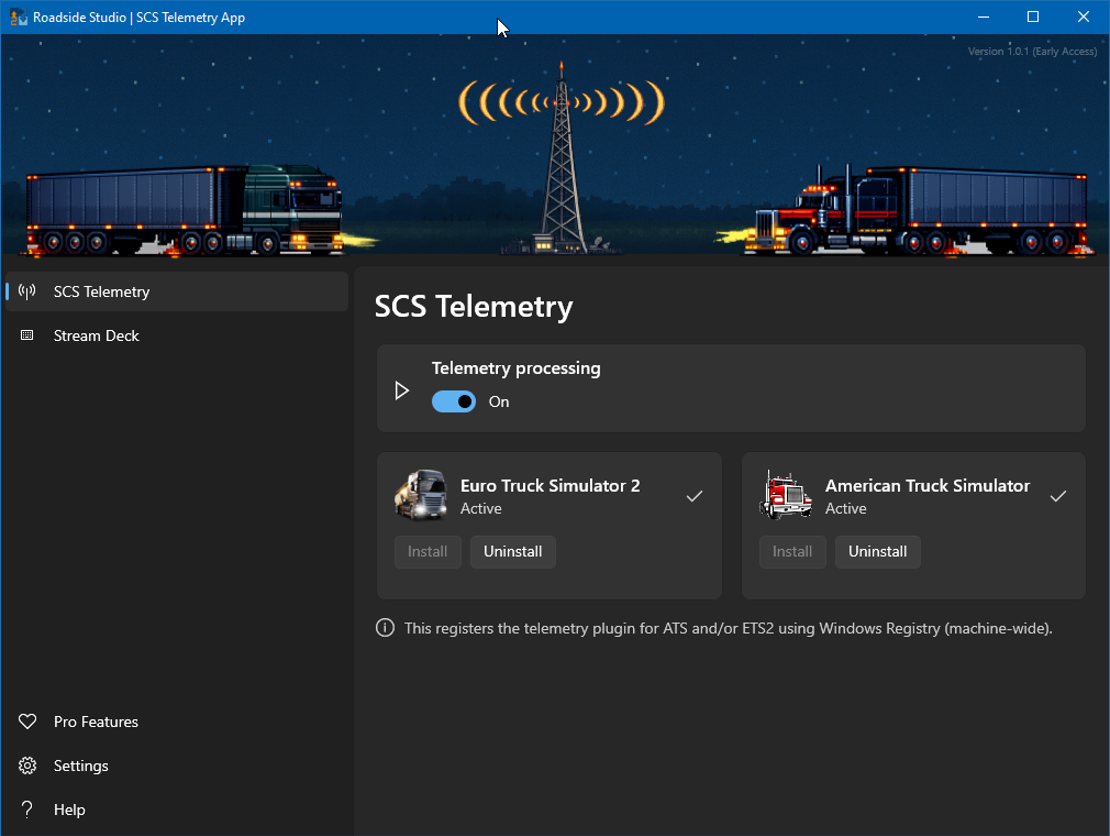
SCS Telemetry tab
On this tab, you can control all aspects of telemetry processing. This is the part where the app "listens" to what your game transmits. Our app processes this game data and than forwards it to "consumers" such as Stream Deck(s).
Telemetry Processing
This switch controls all telemetry processing across the whole app. You can think of this as the main kill-switch. Turning this off stops processing of game data as well as forwarding of processed data to "consumers".
Install / Uninstall (per game)
These controls provide easy way to register our telemetry plugin with each of the SCS titles. To do this, our app will ask for elevated permission, as we have to add a value into your registry.
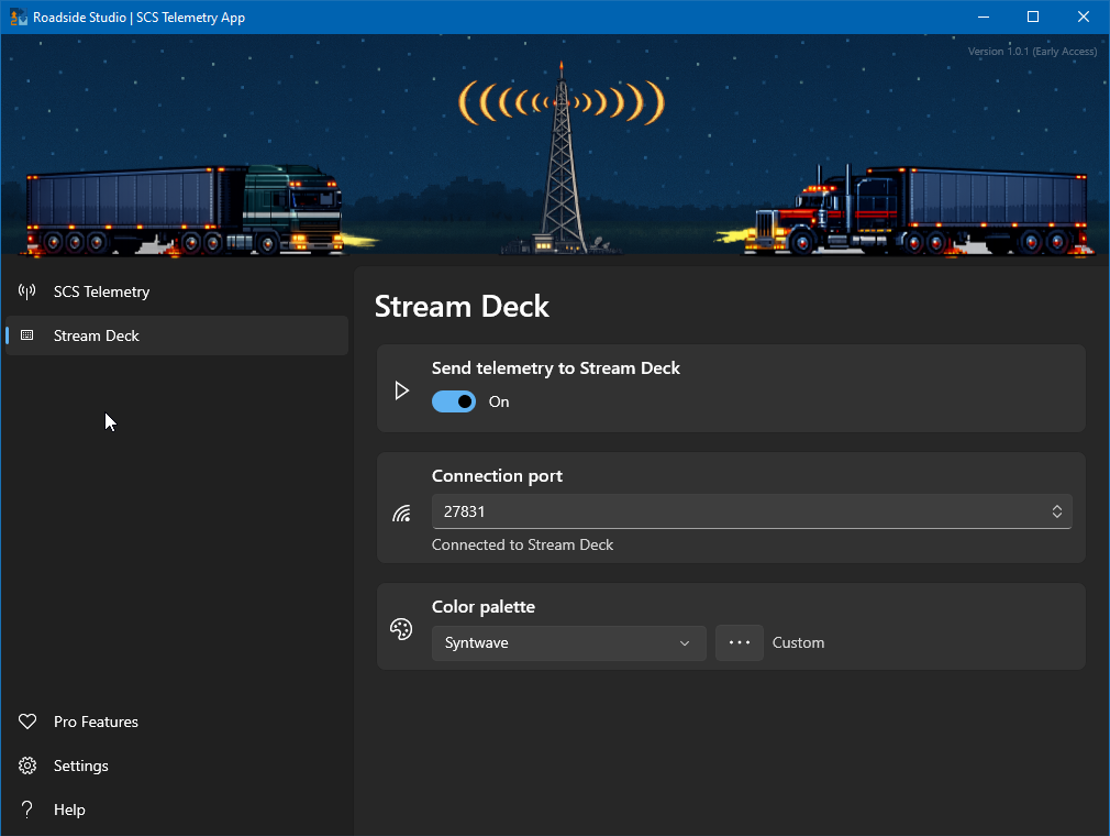
Stream Deck tab
This tab gives you control over the Stream Deck specific settings.
Send telemetry to Stream Deck
This switch controls sending of the telemetry data to Stream Deck devices. It also controls receiving data from the Stream Deck(s), such as hotkeys.
Connection port
Our app uses a web socket port to communicate with Stream Deck software. In case you have communication issues (port might be already taken), you can try changing the port number here. Stream Deck plugin should detect the change automatically.
Color palette
Here you can create and edit color presets for our Stream Deck icons.
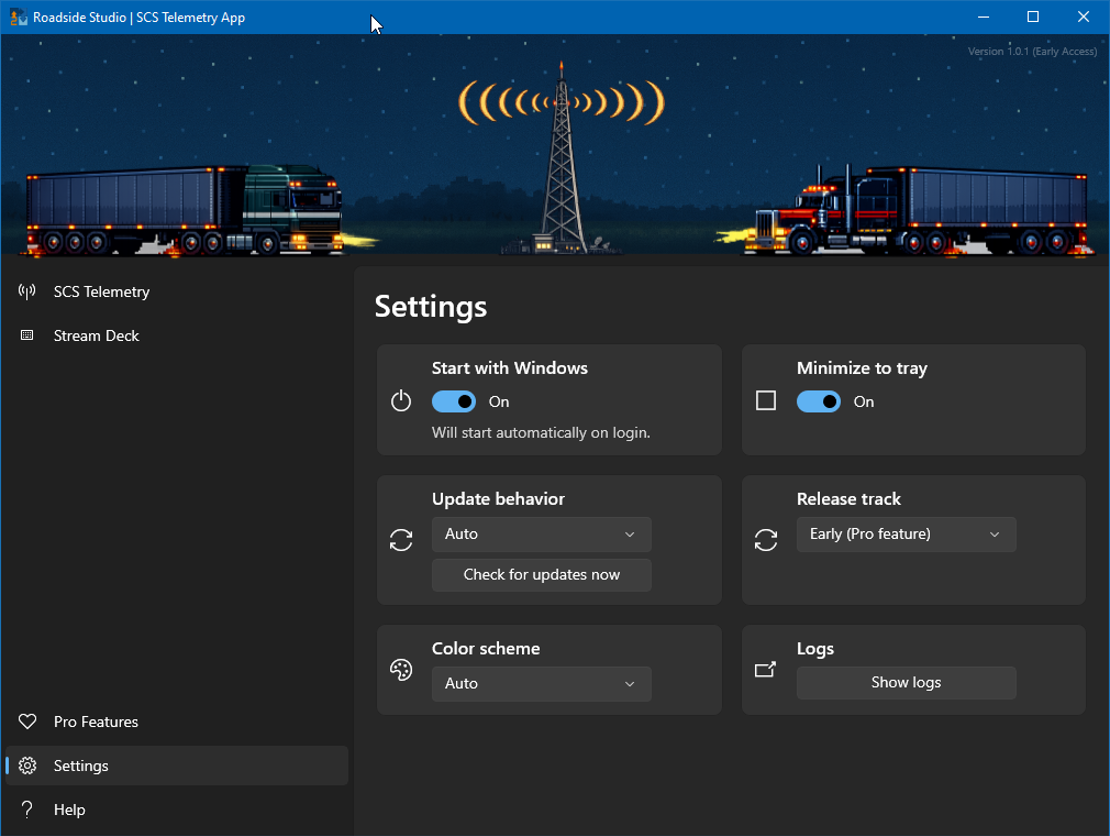
Settings tab
We wanted to give you all the control over the app that you could possible need.
Start with Windows
The app will automatically start when you start your PC... or not. It's up to you.
Minimize to tray
If on, the app will minimize to your tray when you click the red "X" in the title bar. You can still exit the app by right-clicking the icon in the tray.
Update behavior
App comes with automatic updates. You can have it automatic, or we can ask you when updates are available. This is also the place where you can manually check for updates, if you don't use the automatic option.
Release track
Besides our regular update track, we offer an early-access track to our Patrons. This is where you can opt into the early track if you are a Patron.
Color scheme
Our app supports Light (default) and Dark themes. Dark theme is another perk that is meant for our Patrons.
Logs
This is a handy way to access the log folder where we keep the logs for the last 10 days. If you need support, we'd appreciate if you send us your latest log together with your support request.
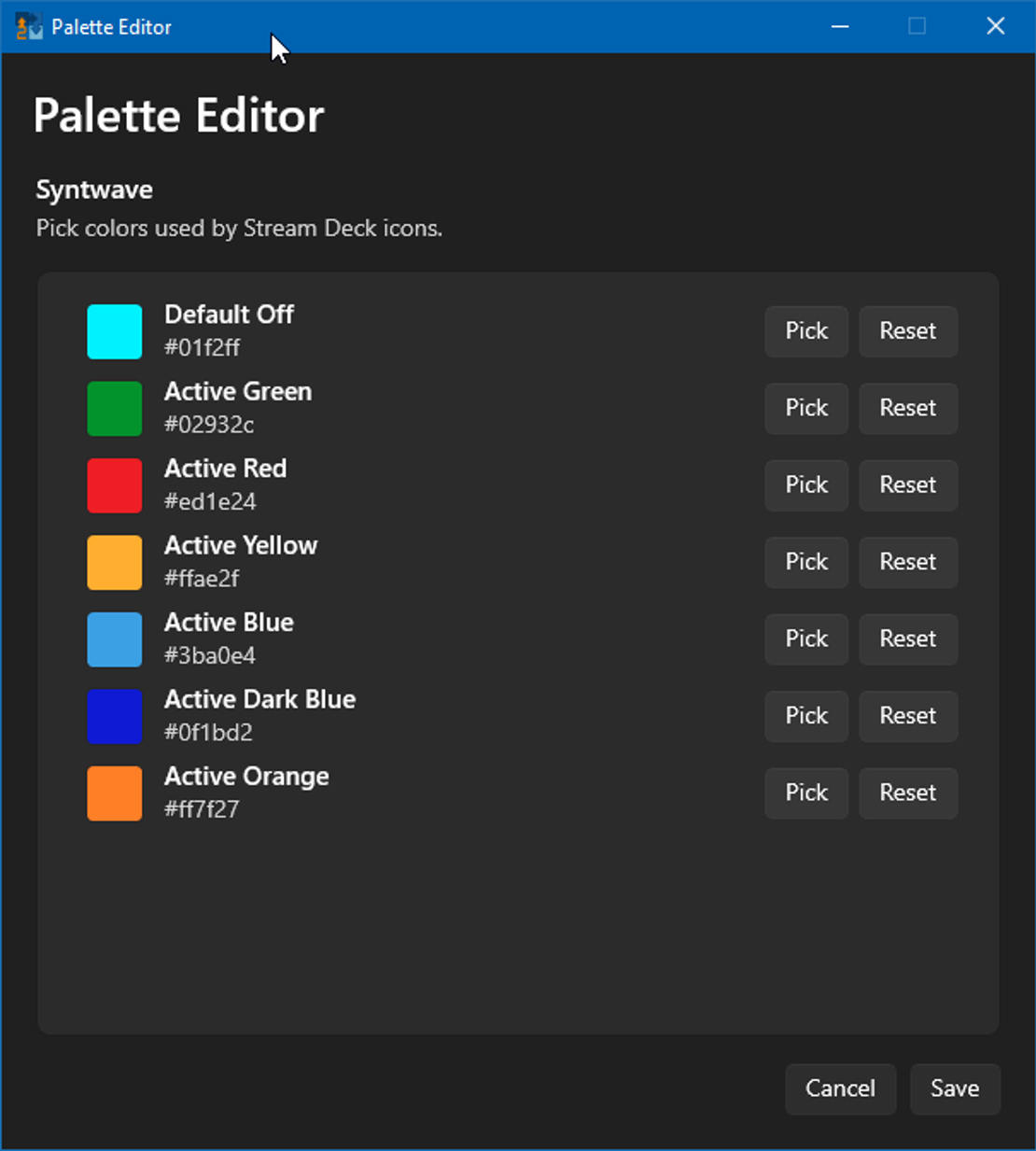
Palette Editor
A simple color palette editor that gives you a quick preview of the colors used.
Color names are based on the default palette and give you a quick idea of how the color is used.
For example - the Active Green color is used for blinker indicators as well as for low-beam lights and corner markers.
Active Yellow color is heavily used in many icons. Both as icons and info text.
Default Off color is the color that most icons start off as.